Guide

Use the claims workspace

Work inside the claim detail surface so evidence, next actions, communications, and operational context stay together instead of being reconstructed across separate screens.

Claims and EvidenceAll teamsUpdated Mar 12, 2026Step-by-step

Outcome

What this helps you do

Use the claim record as the control center for review, evidence, and follow-through across the team so each handoff starts from the same source of truth.

This guide is written for all teams and uses real claimOS screenshots so the instructions map cleanly to the product surface.

Prerequisites

Before you start

  • At least one claim record exists in the workspace.
  • Enough claim context is available to review status, ownership, and the next action.
  • The team has agreed that operational updates belong in the record instead of private side channels.

Steps

How to do it

  1. 1Open the claim with the full context in mind

    The claim workspace is where timeline, files, communications, and next actions connect. Use it as the single record of operational truth.

  2. 2Review the overview before diving into tabs

    Start from the high-level summary so you understand status, deadlines, ownership, and what is already complete.

  3. 3Check owner, deadlines, and blockers before you act

    Confirm who owns the record, what is due next, and whether there are blockers that should change your next move before you disappear into the detail tabs.

  4. 4Move into the tab that matches the task at hand

    Open files, photos, chat, letters, or checks from inside the claim instead of navigating from disconnected surfaces.

  5. 5Save decisions back into the claim record

    As you work, use the record to leave the claim clearer than you found it so the next operator does not need to reconstruct context.

  6. 6Capture the next action before you leave the workspace

    Every meaningful review should end with a clear next action, next owner, or next review date so the claim does not fall back into passive inventory.

  7. 7Run a handoff check before you close the claim

    Make sure the record tells the next operator what happened, what matters now, and what should happen next without extra explanation.

    If you need a separate Slack message or meeting to explain the claim state, the record is still missing something important.

Screenshots
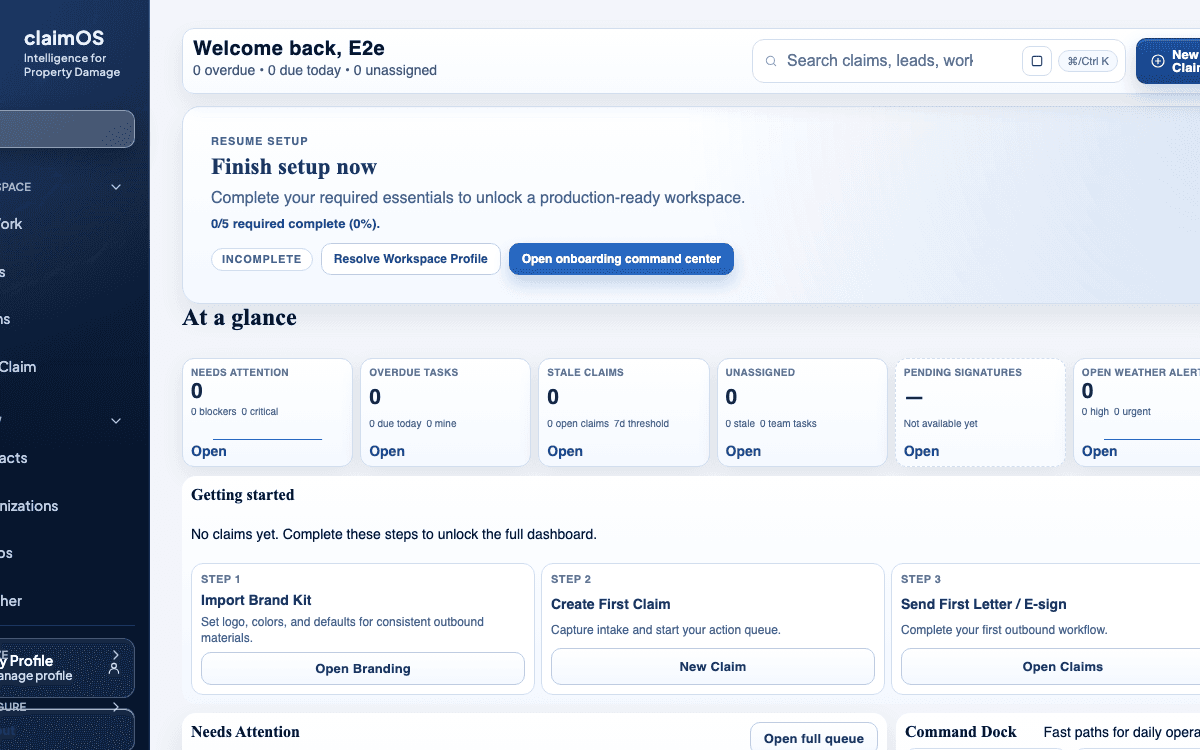
See the workflow

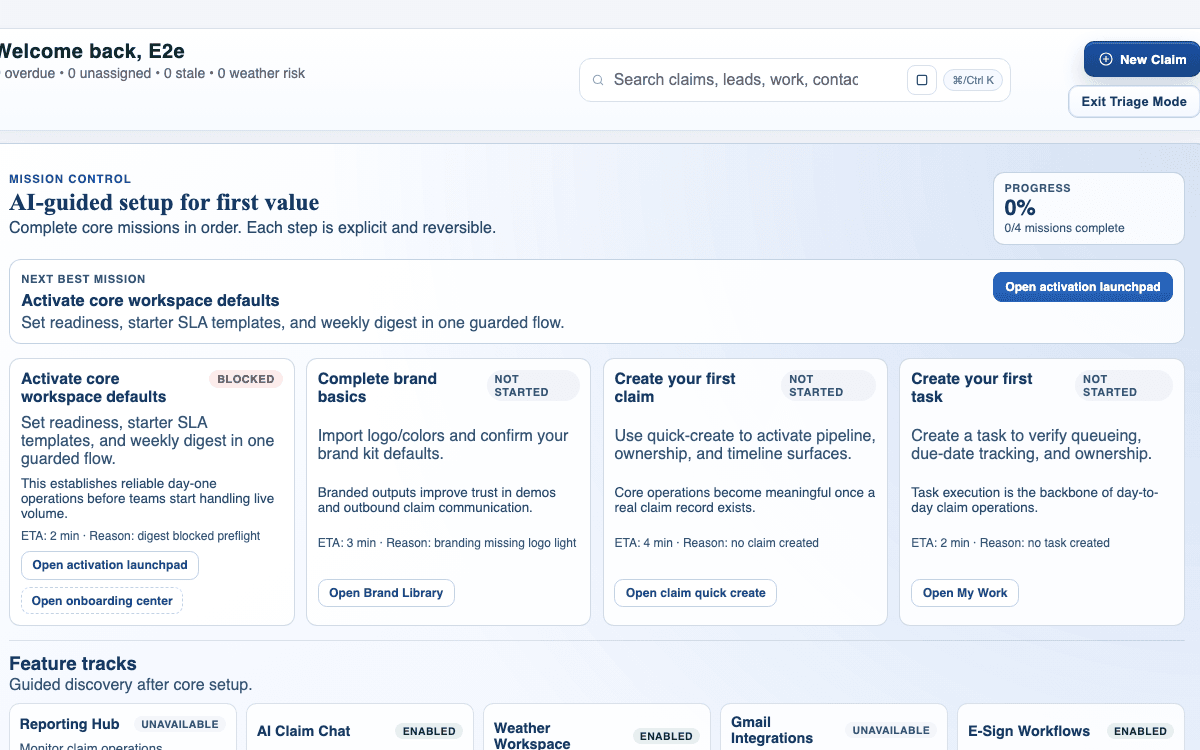
claimOS claims workspace crop showing launch readiness, at-a-glance claim context, and the next operating actions.
Use this frame to explain the claims workspace as the control surface for status, evidence, communications, and next actions instead of treating those decisions as disconnected tasks.
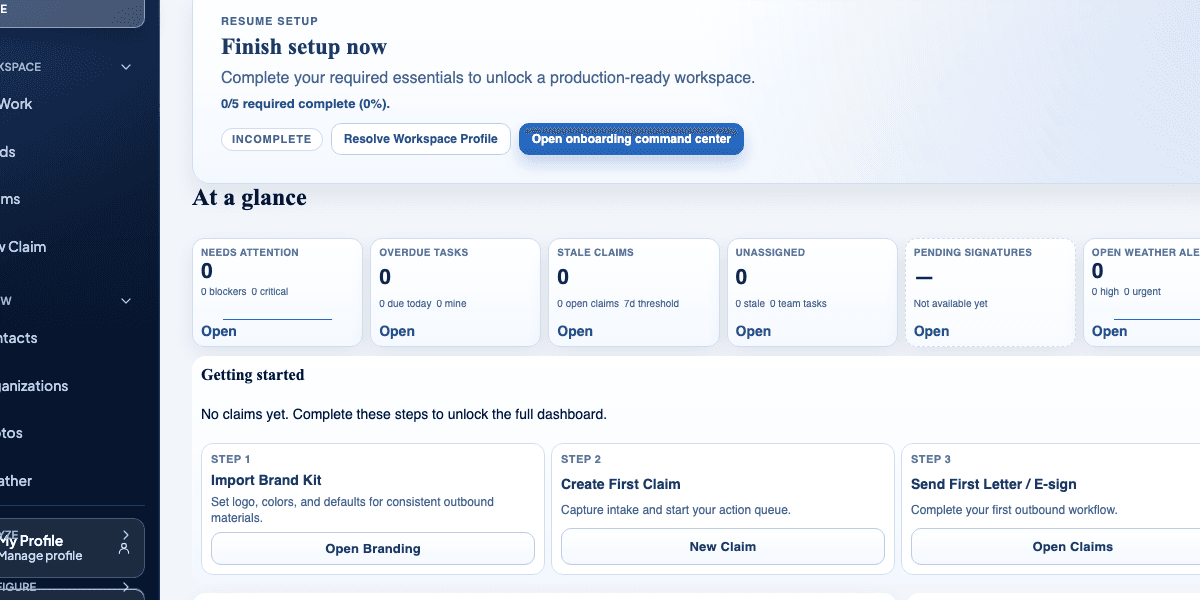
claimOS evidence-review crop showing the operating cards and claim-ready context that support a record decision.
Start the claims workspace review by reading the full operating context around the record so status, evidence, and next action stay tied together.
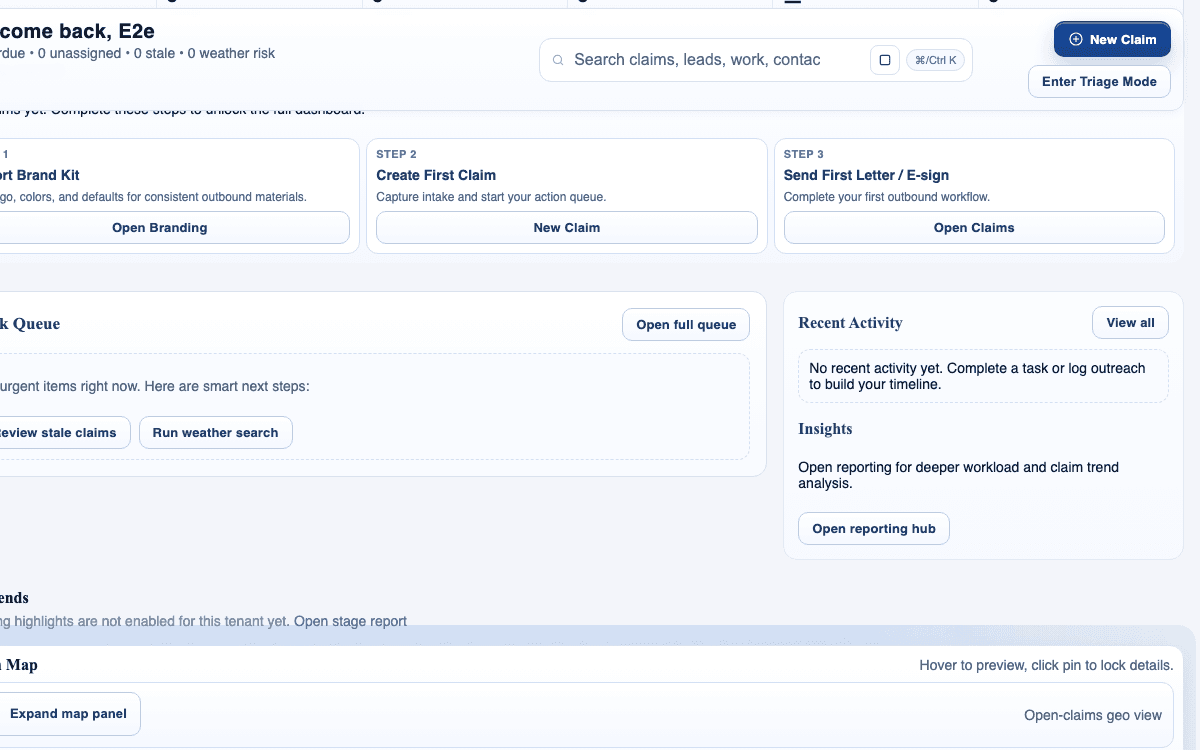
claimOS communications-focused crop showing recent activity, queue follow-up, and the record-adjacent operating context.
As you move through the claims workspace, communications should stay attached to the record instead of being reconstructed from a separate inbox.
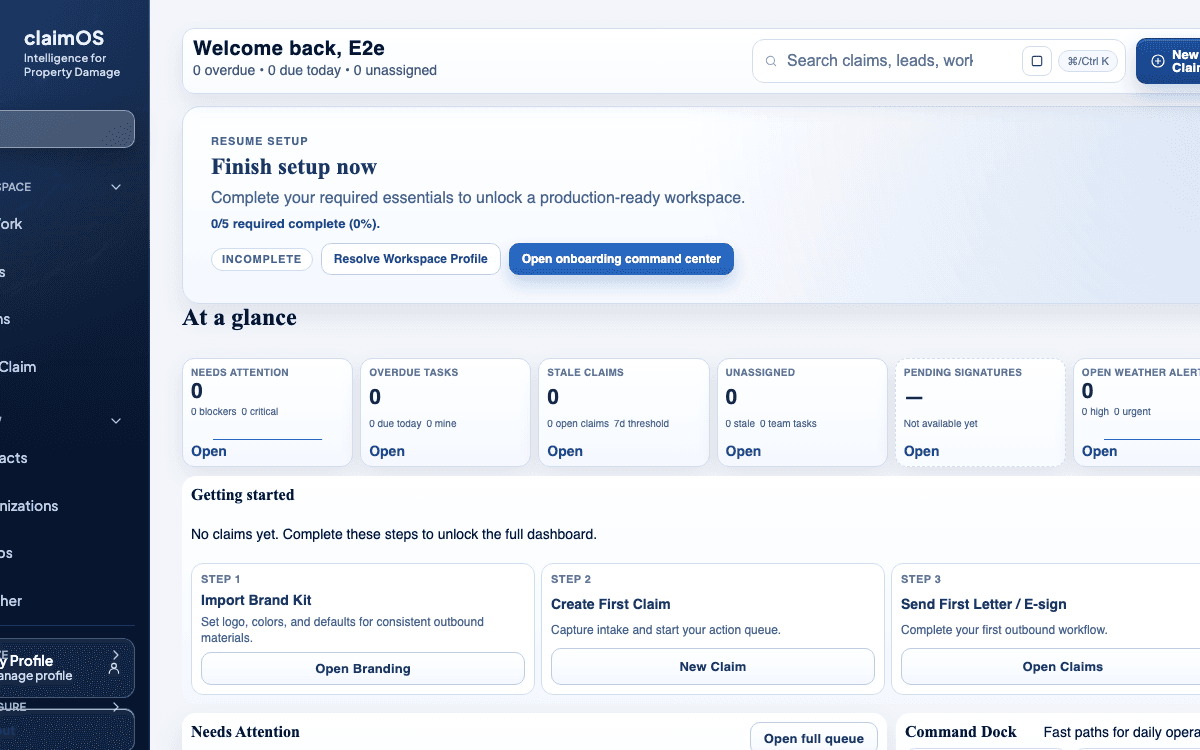
claimOS delivery-focused crop showing the first outbound workflow card and the surrounding claim context.
Use the claim as the handoff layer for delivery too. The record should tell the next operator what was sent, what is pending, and what should happen next.

Watch the paired walkthrough

Poster for the claims workspace tour showing the claim-ready operating surface, at-a-glance cards, and surrounding record context.
Walkthrough1:47

See the same workflow in motion

A quick visual tour of the claim workspace and the connected tabs teams use most often.

Start with the overview so status, ownership, and blockers are clear before you dive into detail work.

Watch related walkthrough

FAQ

Common questions

  • When should I stay in the claim overview instead of opening another tab?

    Stay on the overview until you understand owner, status, blockers, and the last meaningful action. Opening tabs too early usually creates extra clicks without improving judgment.

  • What belongs in the claim record versus a private team note or chat?

    Anything the next operator would need to understand status, evidence quality, or the next action belongs in the claim record. Private notes should not carry operational truth.

  • How do I know the claim is ready for handoff?

    The claim is ready when the next owner, next action, timing, and supporting context are all visible in the record without a separate explanation.

Keep Going

Related guides and walkthroughs

Guide

Manage photos and files

Review supporting evidence, keep file organization consistent, and make it easier for the team to trust what is in the claim before review, response prep, or delivery.

Guide

Use Communications Inbox

Review incoming communications, triage them quickly, and keep claim follow-up from scattering into personal inbox habits or private side-channel cleanups.

Guide

Send and track e-sign documents

Prepare, send, and monitor e-sign work without losing delivery visibility, signer follow-through, or claim context.

Video

Claims workspace tour

A quick visual tour of the claim workspace and the connected tabs teams use most often.