Complete your workspace setup
Use onboarding to configure the essentials that unblock your team's first live workflow in claimOS without wandering through scattered settings pages or launching half-finished defaults.
Guide
Connect the external systems your team actually uses so claimOS can remain the operating layer instead of becoming another disconnected tool in the stack.
Outcome
Set up core integrations in a way that supports real workflows, proves the handoff works, and avoids brittle configuration debt.
This guide is written for admins and uses real claimOS screenshots so the instructions map cleanly to the product surface.
Prerequisites
Steps
Start with the integrations that unblock communication, scheduling, billing, or intake for the team’s near-term workflow.
Before connecting multiple tools, decide which single workflow you want to validate end to end so you know what successful handoff should look like after setup.
Do not stop at a successful connect flow. Confirm the account state, callback behavior, and the expected claimOS readiness indicators.
A good integration should reduce context switching. Check whether the team can now act from claimOS with less dependence on the external system for day-to-day follow-through.
Run a real or demo-safe action through the integrated path so you know the workflow works beyond a green status light and that the team understands what success looks like.
Every integration should have a clear operational owner who can retest the workflow, diagnose drift, and decide when configuration changes are safe.
Each core integration should have a clear owner who can diagnose problems quickly when an external dependency drifts.
Make sure the integrated workflow works more than once, lands in the right place, and is understandable to someone other than the person who connected it.
If the integration only looks healthy because the original admin knows its quirks, it is not stable enough for the wider team yet.
Screenshots
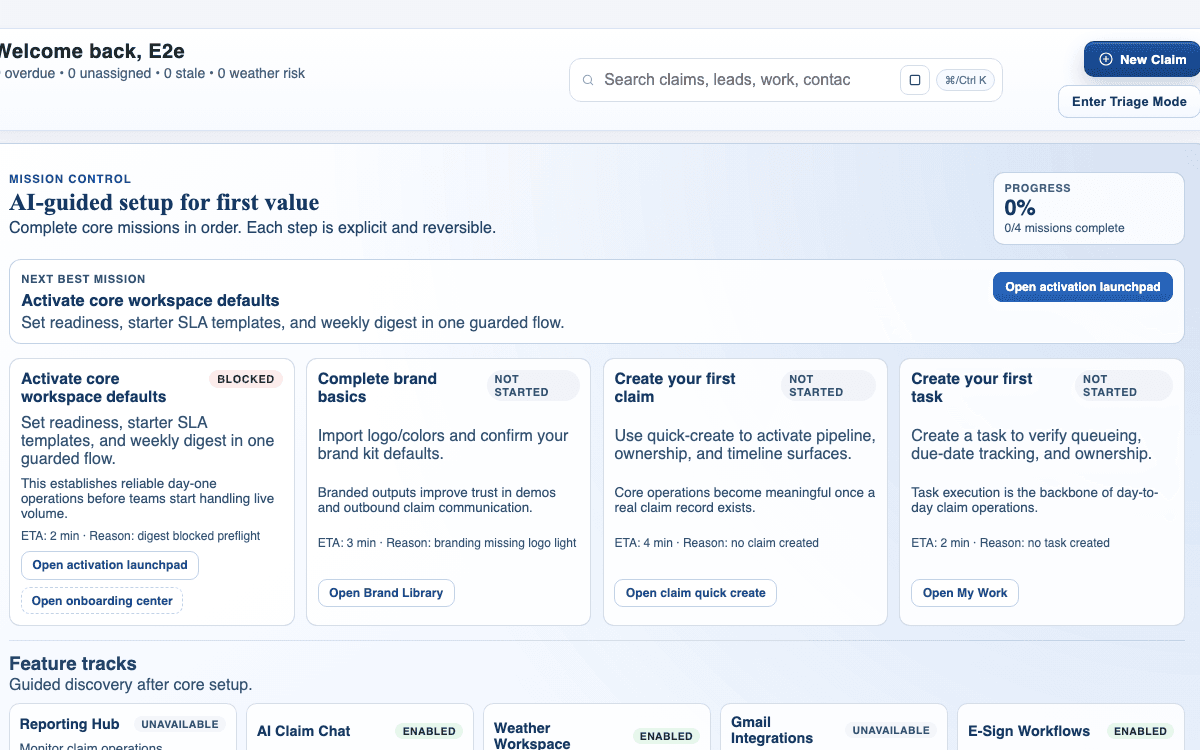
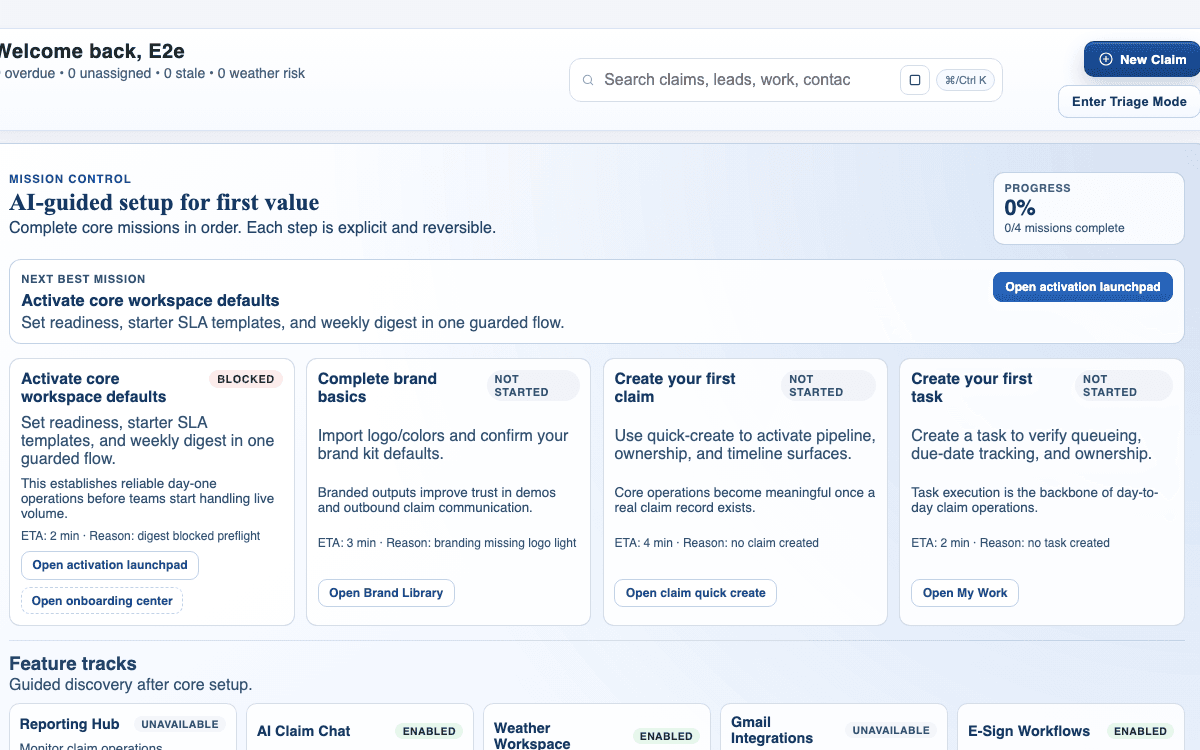
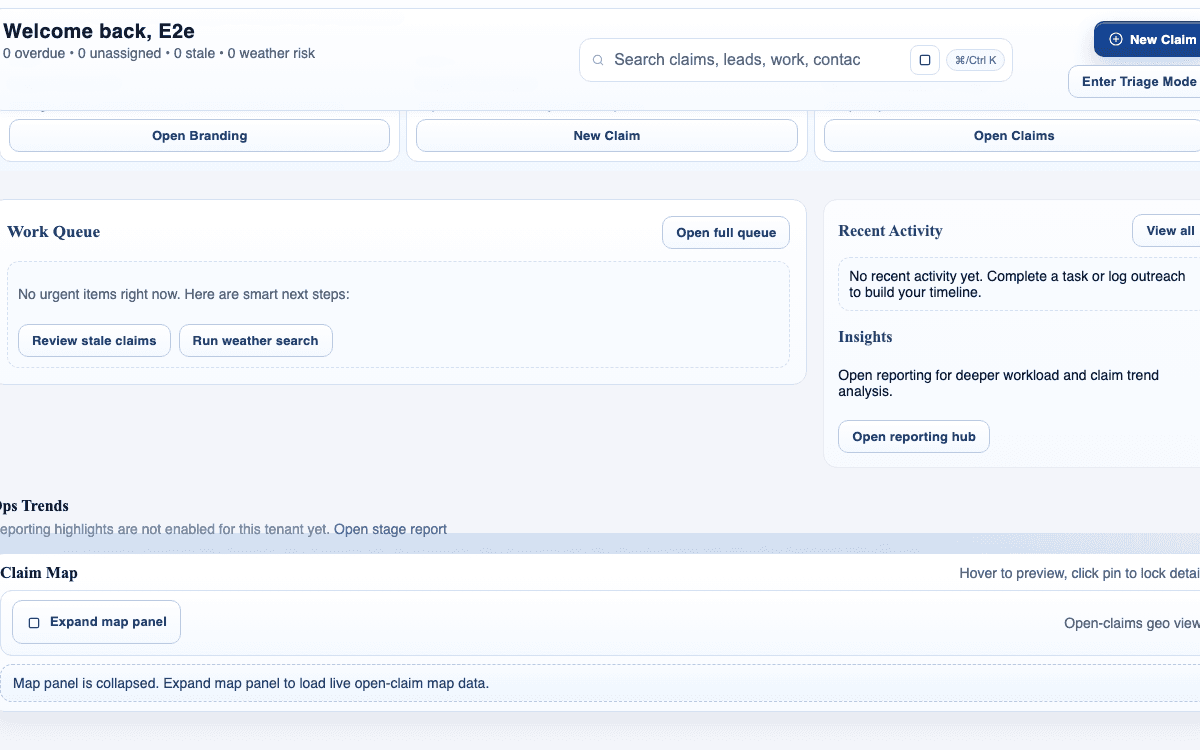
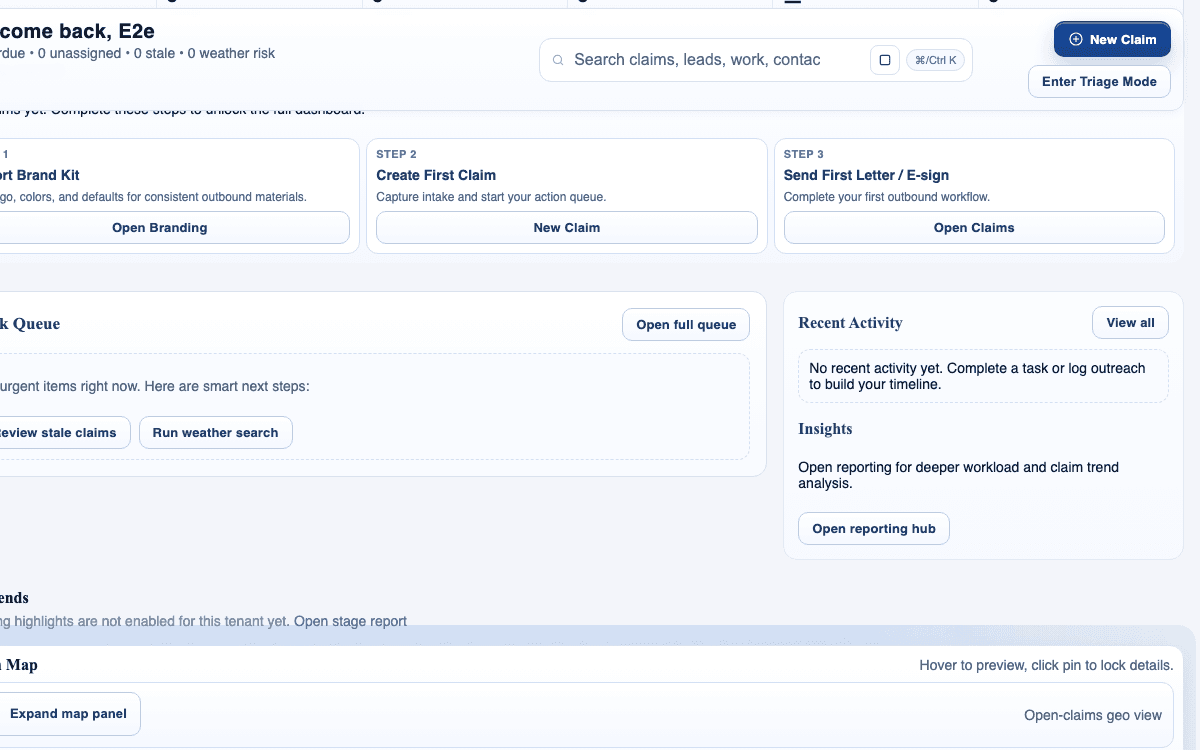
Watch the paired walkthrough
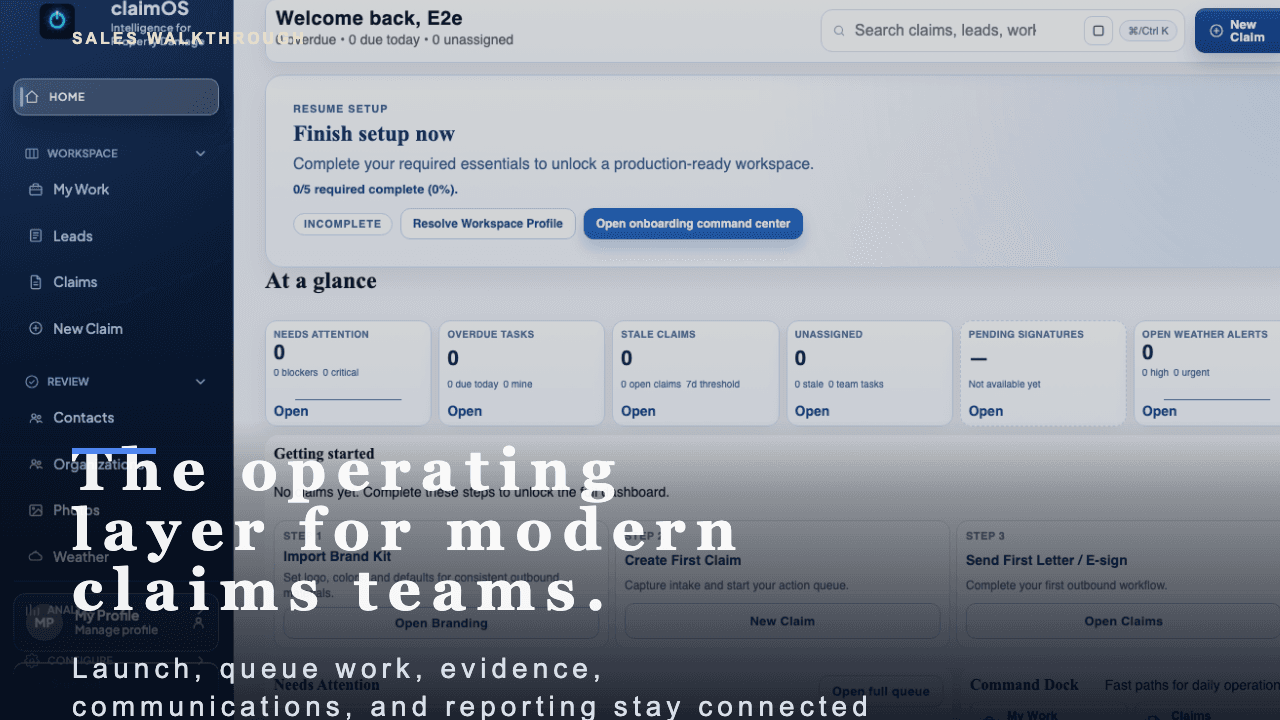
A short buyer-facing walkthrough of how claimOS becomes the operating layer for launch, live claims work, evidence, communications, and reporting.
Start with the high-level buyer question: what does claimOS unify that most teams currently spread across multiple tools and private follow-up loops?
Watch related walkthroughFAQ
No. Start with the essentials that unblock your first claim, then return to optional configuration once the team has a working path.
An owner or admin should handle the first-pass setup so defaults, permissions, and integrations stay consistent across the team.
Start with the systems that directly unblock communication, intake, scheduling, or billing in the near-term workflow. Connecting everything at once usually creates more testing work than real value.
A green connection state is not enough. Run a real or demo-safe workflow through the integration and confirm the result lands where the team expects it inside claimOS.
Keep Going